Your website is accessible every day – including to unwanted visitors, suspicious bots and automated attack attempts. RegioFirewall helps you identify suspicious access, apply protection rules effectively and keep track of security events. The extension…
RegioTicket is a support and ticket system fully integrated into Joomla 5 and Joomla 6. The extension makes it possible to record support requests in a structured way through the frontend, process them in the…
With RegioTicket, your Joomla website becomes a powerful support and service platform. The extension enables you to record customer enquiries, error reports, technical problems and general support cases in a structured way, manage them centrally…
Anyone who wants to get more out of Joomla needs extensions that not only add useful functionality but also integrate reliably into existing websites. At holger-lemke.de, you will find a growing selection of professional Joomla…
General Questions 1. What is DigitalSignage? DigitalSignage is a Joomla 5/6 extension for centrally creating, managing, and distributing digital screen content. Images, videos, RSS feeds, HTML displays, and other media can be combined into slides,…
This FAQ explains the most important ZipDownloads features from the perspective of administrators and users. It focuses on download keys, protected downloads, Free/Pro/Enterprise editions, purchase entitlements, renewals, and upgrades. What is a download or license…
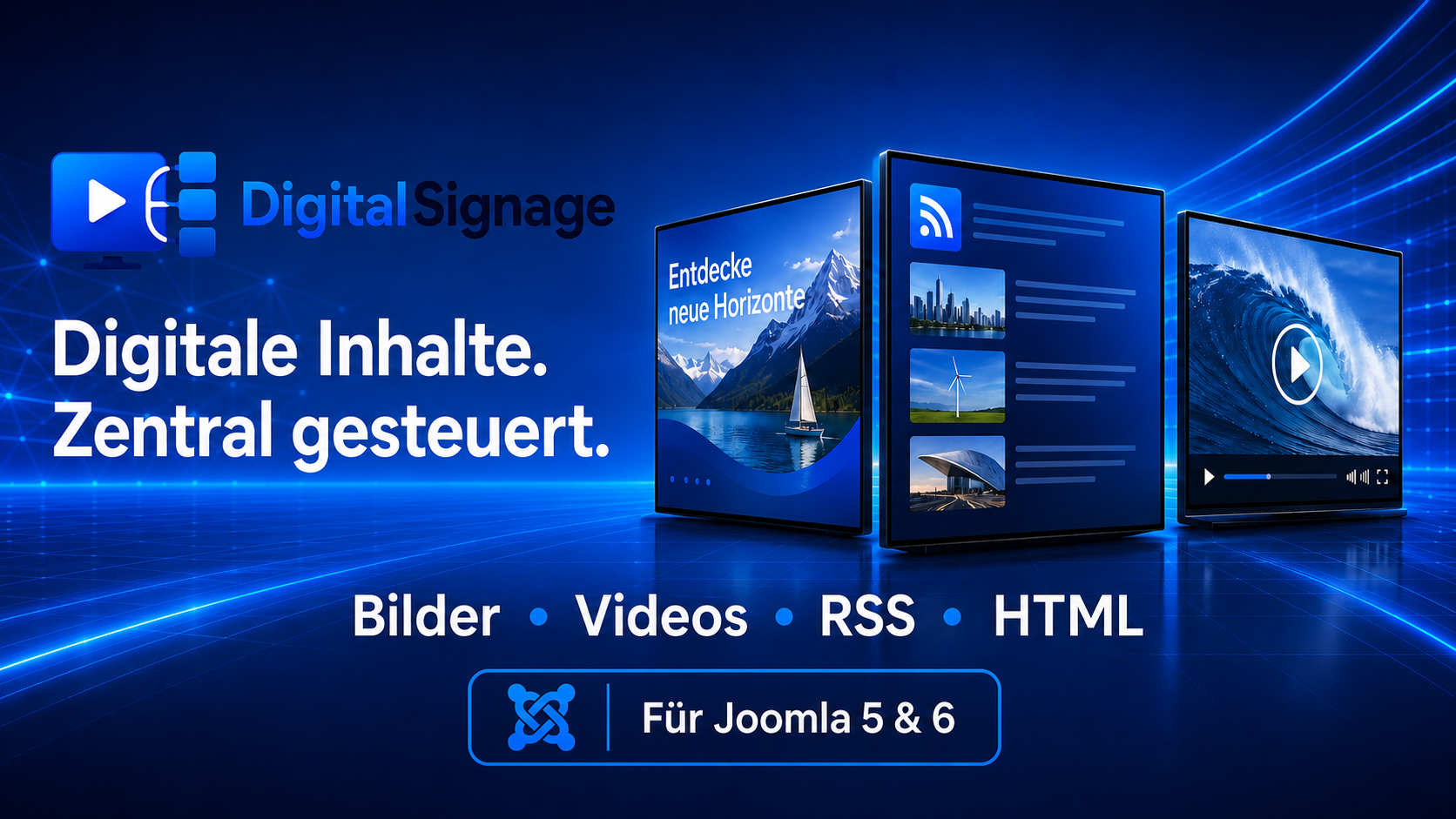
DigitalSignage ist eine leistungsstarke Erweiterung für Joomla 5 und Joomla 6 zur zentralen Verwaltung digitaler Informations- und Werbebildschirme. Bilder, Videos, HTML-Anzeigen, RSS-Feeds, Nachrichten, Uhrzeiten und Countdowns lassen sich übersichtlich als Slides erstellen, in Playlists organisieren und über Kanäle gezielt an unterschiedliche Monitore verteilen.
Das integrierte Vorlagenstudio ermöglicht professionelle Anzeigen im eigenen Corporate Design. Farben, Texte, Logos und Gestaltungselemente können individuell angepasst werden. DigitalSignage eignet sich ideal für Unternehmen, Schulen, Behörden, Geschäfte, Gastronomie, Empfangsbereiche, Veranstaltungen und digitale Schwarze Bretter.
Die Erweiterung unterstützt Deutsch, Englisch, Französisch, Spanisch, Portugiesisch und Italienisch. Die Wiedergabe erfolgt über einen individuellen Monitor-Link in einem Browser oder Kiosk-System.
DigitalSignage is a Joomla 5/6 extension for centrally creating, managing, and distributing digital screen content. Images, videos, RSS feeds, HTML displays, and other media can be combined into slides, playlists, and channels and then displayed on selected monitors.
2. What types of use cases is DigitalSignage suitable for?
The extension is suitable for, among others:
companies and public administrations
schools and educational institutions
hotels and restaurants
shops and shopping centers
medical practices and clinics
clubs and event venues
production and logistics areas
reception areas and waiting zones
information displays and digital notice boards
3. Which Joomla versions are supported?
DigitalSignage is designed for Joomla 5 and Joomla 6. Before installation, you should verify that the PHP version and server configuration meet the requirements of the respective Joomla version.
4. Does DigitalSignage require its own cloud system?
No. Management takes place within your own Joomla installation. Content, configurations, and assignments generally remain on your own server. External sources are only used when, for example, external websites, videos, or RSS feeds are integrated.
5. Can DigitalSignage manage multiple screens?
Yes. Multiple monitors can be created and assigned to different channels. This allows each screen to display its own content or to use the same channel together with other monitors.
Structure and Workflow
6. How is DigitalSignage structured?
The main areas are:
Medium: image, video, HTML content, or another media file
HTML Template: designed template for custom displays
Slide: individual displayable content
Playlist: ordered sequence of multiple slides
Channel: provides the selected content for playback
Monitor: specific display device with its own identifier
7. What is the recommended workflow?
A typical workflow is:
Upload media or create an HTML display.
Create a slide from the content.
Combine multiple slides into a playlist.
Assign the playlist to a channel.
Create a monitor and connect it to the channel.
Open the monitor link in the browser or kiosk system of the display device.
In short:
Medium or Template → Slide → Playlist → Channel → Monitor
8. What is the difference between a channel and a playlist?
A playlist defines which slides are played and in which order. A channel makes this playlist available to one or more monitors.
If the playlist is changed later, all monitors connected to the channel automatically receive the updated content arrangement.
9. Can a channel be used without a playlist?
Depending on the configuration used, a channel can also play content directly. However, for clear and maintainable long-term management, the use of playlists is recommended.
10. Can multiple monitors use the same channel?
Yes. A channel can be assigned to multiple monitors. This allows identical content to be displayed simultaneously on different screens.
11. Can a monitor be assigned to different channels?
The exact assignment depends on the intended playback logic. Usually, a monitor has one primary channel. Rotating or changing content can be organized using the associated playlists and slides.
Media and Content
12. What content can be displayed?
Depending on the configuration, DigitalSignage supports, among other things:
images
videos
HTML content
designed HTML displays
RSS and Atom feeds
news and scrolling text
time and date
countdown displays
notices and messages
promotional offers and pricing campaigns
menus and opening hours
external or local website content
13. Which image formats can be used?
Common web formats such as JPEG, PNG, GIF, and WebP can be used if they are supported by the server, browser, and device in use.
For best playback results, images should already approximately match the aspect ratio of the target screen.
14. Can videos be integrated?
Yes. Videos can be integrated as media or through dedicated video templates. Depending on the browser and device, supported formats such as MP4 or WebM must be used.
For automatic playback, many browsers require videos to start without sound. This is a browser restriction and not a limitation of DigitalSignage.
15. Can external videos be used?
Direct video sources can be used if they are accessible to the browser and the external platform allows embedding. Access protection, CORS rules, or expiring URLs from the external provider may prevent playback.
16. Can a local HTML file be displayed?
Yes. Local HTML content can be used as a medium or designed display. However, included files, fonts, images, scripts, and stylesheets must also be accessible.
For security reasons, only trusted HTML content should be used.
17. Can external websites be embedded?
In principle, external websites can be displayed if the website operator permits embedding. Security headers such as X-Frame-Options or Content-Security-Policy may prevent display within an embedded area.
DigitalSignage cannot bypass such restrictions imposed by an external website.
HTML Templates and Corporate Design
18. What is the HTML Template Studio?
The HTML Template Studio allows professionally designed displays to be created directly in the Joomla backend. Text, colors, content, time functions, and other design elements can be customized and saved as an HTML display.
19. Which templates are available?
The template catalog contains numerous designs for different use cases, for example:
news
events
offers
hospitality
opening hours
welcome messages
notices
countdowns
clock displays
RSS news
video overlays
creative information displays
The exact selection depends on the installed DigitalSignage version.
20. Can custom colors be used?
Yes. In addition to predefined color schemes, text and design elements can be configured with custom colors. These include headings, body text, price or value fields, overlines, and call-to-action lines.
21. Can templates be adapted to a corporate design?
Yes. Colors, text, logos, typography, backgrounds, and other elements can be adapted to match the visual identity of a company or organization.
This makes it possible to create consistent displays for multiple locations or screens.
22. Are all input fields shown for every template?
No. The form adapts to the selected template. Fields that are not used in a particular design are hidden.
For example, a news template does not display irrelevant price or promotional fields.
23. Can created HTML displays be edited later?
Yes. Existing HTML displays can be reopened, modified, and saved. The area containing created displays can be accessed via the dashboard and the Template Studio.
24. Are assigned channels shown for HTML displays?
Yes. Stored HTML displays can show the channels in which they are used. Both direct slide assignments and usage within playlists can be taken into account.
25. Can HTML displays be filtered and searched?
Yes. Depending on the version, filters are available for channel, assignment status, category, format, or display type. You can also search by title, template, category, or channel.
RSS and News
26. Can RSS feeds be displayed?
Yes. RSS and Atom feeds can be used as dynamic data sources. New entries are retrieved from the feed and displayed using the selected design.
27. Can RSS news be displayed in a custom design?
Yes. RSS content can be displayed in your corporate design using dedicated templates. Colors, logo, typography, headings, and other design elements can be customized.
28. Are RSS contents updated automatically?
RSS content is reloaded regularly depending on the playback and cache configuration. This allows new articles to appear without creating a new slide for every entry.
29. Why is an RSS feed not displayed?
Possible causes include:
the feed URL is unavailable
the feed contains invalid XML
the server blocks external connections
the source has invalid HTTPS certificates
the source responds too slowly
the feed uses an unknown format
security rules prevent retrieval
the feed currently contains no entries
The feed URL should first be tested directly in a browser or using a feed validation tool.
30. Is retrieving external RSS feeds secure?
External requests should be restricted and validated on the server side. Internal addresses, local network targets, and unauthorized protocols must not be freely accessible. Administrators should only configure trusted feed sources.
Slides, Playlists, and Playback
31. What is a slide?
A slide is an individual piece of displayable content. It can contain, for example, an image, video, HTML display, RSS feed, or website.
32. Can the display duration of a slide be defined?
Yes. A display duration can be set for time-based content. For videos, the playback duration can be determined by the video length or slide configuration.
33. Can the order of a playlist be changed?
Yes. Slides can be sorted within a playlist. Depending on the interface, sorting is performed using position fields or drag-and-drop.
34. Can content be checked before publication?
Yes. Content should be reviewed using the preview or a test monitor before it appears on public screens.
Particular attention should be paid to:
text size
contrast
aspect ratio
image quality
video playback
RSS presentation
display duration
transitions
35. What happens if content cannot be loaded?
The behavior depends on the content type and player. Faulty content should not permanently block the entire playback. If problems occur repeatedly, the source, file format, network connection, and player log should be checked.
Channels, Monitors, and Links
36. What is a monitor in DigitalSignage?
A monitor represents the actual display device. This may be, for example, a PC, Raspberry Pi, mini PC, smart display, or another browser-capable player.
37. What is the monitor key?
The monitor key is a unique identifier through which a device receives its assigned display. The complete monitor link contains this key and should only be used on the intended devices.
38. What is the difference between a channel link and a monitor link?
The channel link displays the content of a channel directly. It is suitable, for example, for previews and functional tests.
The monitor link additionally identifies the specific display device. This allows assignments, status information, and potentially monitor-specific analytics to be handled more precisely.
For production use, the monitor link should preferably be used.
39. Should the monitor link be shared publicly?
The monitor link should be treated like a device identifier and should not be published unnecessarily. Anyone who knows the complete link may potentially access the content provided for that monitor.
If unauthorized disclosure is suspected, the monitor key should be renewed.
40. Can a monitor be tested in advance?
Yes. The monitor link can first be opened in a normal browser. Only after playback works correctly there should it be configured in the kiosk browser of the actual display device.
Players and End Devices
41. What hardware can be used?
In principle, any sufficiently powerful device with a modern browser can be used, for example:
Windows PC or mini PC
Raspberry Pi
Linux system
Android-based player
Smart TV with a suitable browser
professional digital signage player
Actual suitability depends on video formats, resolution, browser performance, and the content being used.
42. What is a kiosk browser?
A kiosk browser displays a website in full-screen mode without a visible address bar or controls. It is suitable for permanently operated information screens.
The monitor link is configured as the start page and opened automatically after a restart.
43. Does DigitalSignage work without an internet connection?
Local content can be played within a local network as long as Joomla and the end device remain reachable. External RSS feeds, websites, fonts, or videos still require an internet connection.
44. What happens during a network interruption?
Without a connection to the Joomla server, new content cannot be loaded. Whether previously loaded content continues to play depends on the browser, player, and cache behavior.
For critical use cases, network monitoring, local caching, and automatic reconnection should be provided.
45. Which screen resolution is recommended?
Content should be adapted to the actual display resolution. Common resolutions include:
Full HD: 1920 × 1080 pixels
Portrait Full HD: 1080 × 1920 pixels
4K UHD: 3840 × 2160 pixels
4K output requires more powerful hardware and larger media files.
46. Are portrait displays supported?
Yes. Content and templates should be designed in the appropriate portrait format, for example 9:16. Landscape content on a portrait monitor may result in large empty areas or unfavorable cropping.
Multilingual Support
47. Is DigitalSignage multilingual?
Yes. The extension is designed for consistent multilingual operation. The following languages are supported:
German
English
French
Spanish
Portuguese
Italian
Depending on the area, this includes the backend, frontend, modules, menus, forms, help texts, and error messages.
48. Can content be created in different languages?
Content can be created separately by language and assigned to suitable channels or monitors. This makes it possible, for example, to provide different displays for German-, English-, or French-speaking audiences.
49. Why is text displayed in the wrong language?
Check the following:
active Joomla language
language assignment of the menu item
language of the logged-in administrator
Joomla language filter
content assignment
installed language files
Joomla and browser cache
Security and Privacy
50. Which security measures are important?
For secure operation, at least the following rules should be observed:
keep Joomla and DigitalSignage up to date
use strong administrator passwords
restrict permissions using Joomla ACL
upload only trusted files
verify external HTML, RSS, and video sources
do not share monitor keys publicly
use HTTPS
perform regular backups
review server and PHP logs
51. Can arbitrary HTML and JavaScript content be uploaded?
HTML content may represent a security risk. It should only be created or uploaded by trusted administrators.
Users with restricted permissions must not be able to inject unverified scripts.
52. Does DigitalSignage process personal data?
Displaying general content does not normally require personal data. However, depending on enabled statistics, logging, external sources, and embedded services, technical data such as IP addresses, timestamps, or device information may be processed.
The exact privacy assessment depends on the configuration and the third-party services being used.
53. Can external services create privacy issues?
Yes. External videos, fonts, websites, or feeds may establish connections to third-party providers. This may transfer technical player data to those providers.
For privacy-friendly operation, media should be hosted locally whenever possible, and external services should be carefully evaluated.
Administration and Maintenance
54. Can existing content be changed later?
Yes. Media, slides, playlists, channels, monitors, and HTML displays can be edited in the backend. Changes should then be checked using the preview or a test monitor.
55. Are changes displayed immediately?
Changes are applied the next time the player loads or refreshes the content. Browser, Joomla, or proxy caches may delay the update.
If old content remains visible, the player and browser should be reloaded and the relevant caches cleared.
56. Can content that is no longer required be deleted?
Yes. Before deleting content, you should check whether the medium or slide is still being used in a playlist, channel, or display.
Controlled deactivation or archiving is often safer than immediate permanent deletion.
57. Is there an update server?
DigitalSignage can be updated using a Joomla update server defined in the package manifest. Joomla's update management checks whether an update is available.
A complete backup of files and the database should be created before every update.
58. Is content retained during an update?
A regular Joomla update should preserve existing data and configurations. Nevertheless, a backup is required before every update. Major version upgrades should first be tested on a test system.
Troubleshooting
59. Why does a screen remain black?
Possible causes include:
the monitor link is incomplete or incorrect
the monitor key is invalid
no channel has been assigned to the monitor
the channel has no active playlist
the playlist contains no published slides
a video format is not supported
the browser blocks autoplay
JavaScript is blocked
the network or server is unavailable
the browser or Joomla cache contains outdated data
60. Why does a video not play automatically?
Modern browsers often block autoplay for videos with sound. The video should start muted or the kiosk environment should be configured accordingly.
In addition, the file format, MIME type, and video codec must be supported by the device.
61. Why is an external website not displayed?
The external website may prohibit embedding through security headers. Typical causes include X-Frame-Options or a restrictive Content-Security-Policy.
In this case, either the external website must be adjusted or a different display method must be chosen.
62. Why are changes not being applied?
The following steps often help:
Save the display.
Check the assignment to the slide, playlist, and channel.
Clear the Joomla cache.
Clear the browser cache on the player.
Reload the player completely.
Check the reverse proxy or CDN cache.
Test the monitor link again.
63. Why are menu items or buttons missing in the backend?
Possible causes include:
missing Joomla permissions
incomplete installation
damaged or outdated language files
database update not executed
outdated Joomla cache
conflict with an administrator template or extension
The Joomla database check and user group permissions should be reviewed.
64. What information is helpful for a support request?
A support request should ideally include:
DigitalSignage version
Joomla version
PHP version
browser and player used
operating system of the display device
affected area
exact error message
screenshot
steps to reproduce the issue
relevant Joomla and server logs
Passwords, session cookies, complete monitor keys, and other credentials must not be transmitted publicly.
Final Question
65. What is the biggest advantage of DigitalSignage?
DigitalSignage combines familiar Joomla administration with centralized control of digital screens. Content does not need to be maintained separately on every device. Changes are made centrally and can be distributed precisely using slides, playlists, channels, and monitors.
This makes DigitalSignage suitable both for individual information screens and for larger installations with multiple locations and different content programs.
The Digital Signage Player for Raspberry Pi 1 makes it possible to display channels from the Joomla extension Digital Signage 3.2.0 or newer on older and resource-constrained devices.
The player was developed specifically for the Raspberry Pi 1 and comparable ARMv6 systems where modern browsers such as Firefox or Chromium cannot be used reliably, or cannot be used at all. Instead of relying on a full web browser, the player renders content through a lightweight runtime environment optimized for this class of hardware.
This makes older Raspberry Pi devices suitable for continued use in information displays, internal signage systems, presentation screens, digital notice boards, reception areas, or other lightweight Digital Signage installations.
The standard browser-based Digital Signage player provided by Joomla remains unchanged and can still be used on newer and more powerful devices.
Requirements
The following components are required:
Raspberry Pi 1 Model A, A+, B, or B+
alternatively, a newer Raspberry Pi model
Raspberry Pi OS Lite 32-bit
a working network connection
a Joomla 5 installation with Digital Signage 3.2.0 or newer
at least one published Digital Signage channel
a published monitor assigned to the relevant channel
For the most reliable setup, a fresh installation of Raspberry Pi OS Lite 32-bit is recommended.
The included installer automatically sets up the runtime environment required by the player. This includes:
X.Org
a minimal Openbox session
Python
Tk
Pillow
VLC
automatic startup
offline cache
monitor supervision
A full web browser such as Firefox or Chromium is not installed and is not required for normal operation.
Preparing Joomla
Before configuring the Raspberry Pi, the Digital Signage setup must first be prepared in Joomla.
Install Digital Signage 3.2.0 or newer, or update an existing installation accordingly.
Then publish the desired channel in the Joomla backend.
After that, create a new monitor under Monitors and assign it to the appropriate channel.
When the monitor is saved, Digital Signage automatically generates a device key. This key is used to identify and authenticate the player.
In the monitor list, open “Configuration for Raspberry Pi 1”.
The following information is required for installation:
Server address
Channel token
Device key
Keep these values available for the installation process on the Raspberry Pi.
Installation
Transfer the ZIP archive to the Raspberry Pi and extract it completely.
Then execute the installer from the extracted directory with root privileges:
sudo ./install.sh
This installation method starts an interactive setup and asks for the required connection details.
Unattended Installation
The installation can also be performed completely without prompts by passing the required values directly:
These logs are especially useful if the player does not start, cannot connect to the Joomla server, or does not display content as expected.
Supported Content
The Raspberry Pi 1 player supports several media and content types directly.
Images
The following image formats are supported:
JPEG
PNG
WebP
GIF
BMP
Videos
Videos are played using VLC.
For Raspberry Pi 1 hardware, the following format is recommended because of the limited processing power:
Container: MP4
Video codec: H.264
Audio codec: AAC
This combination generally provides the best compatibility on older Raspberry Pi hardware.
RSS and Atom Feeds
RSS and Atom feeds can be displayed as native cards.
Images included in feeds are cached locally. This improves efficiency and can also make previously retrieved content available during offline operation.
Template Studio Cards
Static content from the Template Studio can also be displayed.
Supported elements include in particular:
text
colors
static design elements
HTML Content
Simple HTML text can be processed by the player.
Because the Raspberry Pi 1 player deliberately does not use a full browser engine, HTML content is rendered as sanitized plain text.
Limitations for Websites and Browser-Dependent Content
The Raspberry Pi 1 player intentionally operates without a full browser.
For this reason, browser-dependent external websites and uploaded websites that require a browser engine cannot be rendered directly on Raspberry Pi 1 hardware.
Instead of showing an empty or broken screen, the player displays a clear information card explaining that the content cannot be played on this device.
On newer and more powerful systems, the standard browser-based Joomla Digital Signage player remains available and unchanged.
Offline Operation
A key feature of the player is its local caching mechanism.
The most recently retrieved valid playlist is stored here:
/var/lib/digitalsignage-pi1/cache/manifest.json
Required media files are also cached locally.
If the network connection is interrupted or the Joomla server is temporarily unavailable, the player can continue to display the most recently stored valid playlist.
This allows the Digital Signage screen to remain operational during temporary network or server outages.
As soon as the connection is restored, the player automatically reconnects and updates its content.
Display and Cache Configuration
The central player configuration file is located at:
/etc/digitalsignage-pi1/player.json
Several important player settings can be adjusted there.
width and height
The options
width
height
define the player rendering resolution.
Using the value
0
causes the player to automatically use the detected HDMI resolution.
This allows the player to adapt to the connected display.
max_asset_mb
The option
max_asset_mb
defines the maximum allowed size of a single media asset.
This can help prevent unusually large files from consuming excessive storage or system resources.
max_cache_mb
The option
max_cache_mb
defines the maximum size of the local player cache.
This allows administrators to control how much disk space may be used for locally stored Digital Signage content.
mute
The option
mute
can be used to globally mute all videos.
This is especially useful for information screens where video content should always be played without audio.
show_status
The option
show_status
can display a small connection status indicator.
This allows the screen to show whether the player is currently operating in online or offline mode.
ssl_verify
The option
ssl_verify
controls TLS certificate verification.
For security reasons, this setting should normally remain enabled.
Protecting the Configuration File
The configuration file
/etc/digitalsignage-pi1/player.json
contains connection information and credentials required for communication with Digital Signage.
For this reason, access is restricted so that the file can only be read by root and the player service.
This helps prevent other local users from unnecessarily accessing sensitive configuration data.
Uninstallation
To remove the Digital Signage player from the Raspberry Pi, run the included uninstall script from the installation directory:
sudo ./uninstall.sh
The service and the player application itself are removed.
However, existing configuration files, cache data, and log files are intentionally preserved.
This makes it easier to restore the previous setup or reinstall the player without losing existing settings and diagnostic information.
Summary
The Digital Signage Player extends Digital Signage 3.2.0+ for Joomla 5 with a playback solution specifically designed for older Raspberry Pi systems.
By avoiding Firefox, Chromium, and other full web browsers, the player is particularly suitable for the Raspberry Pi 1 and ARMv6 hardware with limited system resources.
Despite its lightweight architecture, the player provides the essential functions required for a practical Digital Signage environment, including image playback, video playback, RSS and Atom feeds, Template Studio content, simple text rendering, automatic startup, local caching, offline playback, logging, and system monitoring.
This makes it possible to continue using older Raspberry Pi devices as standalone Digital Signage players while managing their content centrally through the Joomla extension.
RegioSucher.de is a regional information and service portal for Baden-Württemberg, Germany. Discover local news, events, attractions, businesses, associations and useful information from the region – clearly organised a…